
The bell at the top of the page shows how many new notifications you have. Press it to open the Notifications page. Each one has "View", "Mark as read" and "Delete". "Mark all as read" clears the count.
You can also get alerts on your phone or computer for a class tomorrow, a class that moves or is called off, a place on a waitlist, a message, or a reply to your support ticket. To turn them on:
1. Open the Notifications page. 2. Open "Alerts on this phone or computer". 3. Press "Turn on notifications on this device", and allow them when your browser asks.
Each device is turned on separately. To stop them, press "Turn them off on this device".
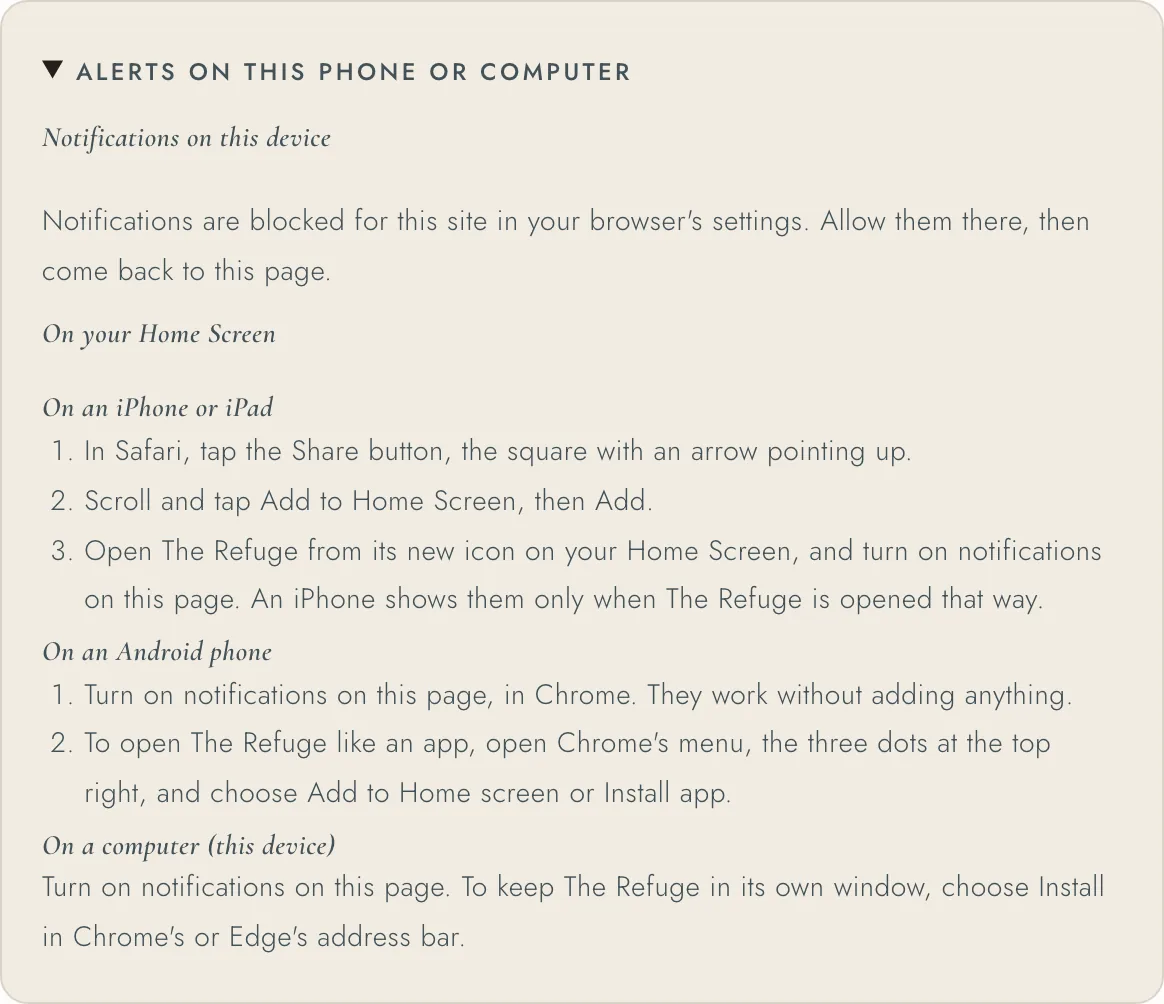
On an iPhone or iPad, notifications work only when The Refuge is opened from your Home Screen:
1. In Safari, tap the Share button, the square with an arrow pointing up. 2. Tap Add to Home Screen, then Add. 3. Open The Refuge from its new icon, and turn on notifications on the Notifications page.
On an Android phone, turn on notifications in Chrome. They work without adding anything. To open The Refuge like an app, open Chrome's menu, the three dots at the top right, and choose Add to Home screen or Install app.
To choose which emails you get, press "Choose which emails you get" on the Notifications page. On the Notices tab you can turn off class reminders, waitlist news and messages, and turn on the weekly update. Press "Save your notice choices". What you turn off stops its email and its alert, and still shows on the Notifications page. Payments, your account, your support tickets and changes to a class you booked are always sent.